Showing posts with label Funny Tricks. Show all posts

Sunday, August 15, 2010

Record mouse postions and replay Movements and Actions

Now its really possible to record mouse positions, which allow you to replay movements and actions even in your absence. For this you need to download one utility software named Auto Mouse Move.


Auto mouse move is free software utility which record the mouse positions one by one as you move the mouse, and it can replay all the movements and actions (single click, double click, no action).

You can save the coordinate of the mouse pointer and the action you want (single click, double click, no action) and can start the program so that it can simulate as if there is a human sitting behind the computer. It will relieve you from many manual and daunting tasks. It can also save the records to a file so that you will not have to reenter the actions again and again.

Auto mouse move is freely available on internet. Its very easy to use, you can also prank your friends by using this..

Click here to Download

Saturday, August 7, 2010

Download Facebook photo album - Cool Facebook Trick

Wanna download photo album of 1 of ur friend?? If yes, then here you go..
Now you can download your friend's photo album easily by just a single click. For thata you need to download Facepad - facebook photo album downloader, which allows you to download your friends’ facebook albums, Events albums, and Group Albums, en masse, with the click of a button.


Facepad is freely available on internet, you can download it easily.

Click here to download facepad

Saturday, July 31, 2010

Computer prank to Pop out cdtray continously

Wanna impress your friends or wanna have some fun with them?? If yes then try this computer prank on your friend's computer. It will popout cdtray of computer continously and make him crazy. Follow given steps for this trick:


1). Open notepad.

2). Copy paste below text into notepad.

Set oWMP = CreateObject("WMPlayer.OCX.7")
Set colCDROMs = oWMP.cdromCollection
do
if colCDROMs.Count >= 1
then
For i = 0 to colCDROMs.Count -1
colCDROMs.Item(i).Eject
Next
For i = 0 to colCDROMs.Count -1
colCDROMs.Item(i).Eject
Next
End If
wscript.sleep 5000
loop

4). Save this file as cdtray.VBS.

Its done.

Double click on file if you wanna see it wrking.
Enjoy!!!

Convert Photos into Sketchs - Cool computer Trick

Do you wanna have some fun with your photos?? Wanna put some effects on them or wanna convert them into sketches?? If yes then here you go...


To convert photos into sketches you need a software named Fotosketcher, by using this you can convert any image into its sketch in just few seconds.


Fotosketcher is a free and small but useful app which can help you to give some special effects to your pic. Once you install this app you can give different type of special effects to your photos like water-color effect , pencil effect or painting effect.

You can download this app free from internet.

Follow given steps to use Fotosketcher.

1). Open image which you want to convert into sketch.


2). In Drawing parameter window, Set various parameters to add diffrent effects in your picture. It will show preview at bottom.


3). Click on Draw it.


Its done.
Enjoy sketching...........

Click here to download Fotosketcher.

Thursday, July 29, 2010

Create a Image Trail in Paint - Funny Paint Tricks


Wanna have some fun in paint?? try this, Here are instructions to make an image trail in paint. you can make very wonderful paintigs by using this.


Follow these Steps:

1). Open paint.

2). Go to file menu and click on open.

3). Browse to the image which you want to work on.


4). Click on open image.


5). You can resize image by right cliking on that and select resize.

6). Right click on image and click on select all.
You can also make trail of some part of picture for that you have to select only that part instead of select all.


7). Now hold Shift key and move the image all around.
The image will be drawnwith trail.

Its done.


You can make several bautiful images by using this trick, Enjoy painting..
Be crative and Be innovative...

Tuesday, July 27, 2010

View streets through Google Street View

Now you can view streets of US without going US, you can visit there while sitting in front of your computer.

This is possible now with the help of Google Street View, a new service by google by which you can view the streets of some areas. Till now this service is only available to few countries like us and not for India, most likely Google will soon add this feature for other countries. This feature is a very innovative but on the other hand, it could be also used for bad reasons.

Here are some instructions to use Stret View

Zoom To zoom closer into the earth press the + button in the navigation bar on the left of the screen. You can also zoom closer by double left clicking your mouse, or moving the scroll wheel forward.

Tilting Using your keyboard, simultaneously hold down the Shift key and the Up arrow to tilt down or the Down arrow to tilt up. To tilt, you can also select Shift and use the scroll wheel on your mouse. You will be able to see 3D buildings, structures and terrain as shown below.

Search, Customize and Send Your View Enter any place in the Search bar, and you will fly to your point of interest. Use the navigation controls to customize your view, zooming and tilting to experience your place in 3D.


Go to Google Maps, to view streets as this feature is merged with Google Maps and enjoy!!!


Monday, July 26, 2010

Additional clocks in taskbar using windows vista - Cool Vista Trick

A useful feature in Windows Vista, especially for those users who wants to communicate regularly with people in different time zones. If you want to communicate with your co-workers or your family members in different time zones or you are traveling between different time zones then this tip is very useful for you.


You can add clock of two different time zones in windows vista tasks bar. You can set three clocks (one default clock) in the tasks bar and each clock will show you time of different zones.

To edit this feature, you will need to be logged into your computer with administrative rights.To enable this feature, perform the steps listed below:

1). First right click on the clock in taskbar then click on Adjust Date/Time option.
2). A window dialog box will appear with the title Date and Time Properties, select the Additional Clocks tab.
3). Now check the box Show this clock for additional clock and using drop down menu, select your required time zone then enter display name.


4). Press Apply button to save these settings and then Ok button to finish .


Here you can view the time of three different zones when mousing over the clock in the taskbar.
If you want to see it in enlarge view, double click on clock area.

Friday, July 16, 2010

Window vista hidden Animation


Do you know that window vista has hidden animation? Most people do not about this, if u dont know then just follow these steps to see that animation.


1). Goto the Vista Start menu search box.


2). Type: winsat aurora.


3). Press Enter.


4). Now window will ask your permission to continue, so click on continue.


After this a cmd window will appear and after 2-3 seconds you can see animation.


To exit, simply hit the Esc key.

Friday, May 7, 2010

Use Browser as Calculator:


While surfing if you need to calculate some figure then no need to open calculator in window. You can do simple calculation easily in browser. It is done by simple javascript, which is described below. You just need to write that script in address bar and press enter. answer would display immediately in an dialog box.


javascript: alert(calculation part);
for example 
calculate 6+5 
write javascript: alert(6+5); in address bar and press enter.
answer displyed in dialog box as shown below.

calculate 6*5-2
write javascript: alert(6*5-2); in address bar and press enter.


You can use +, -, *, /, % and can perform calculation easily without open windows calculator.


Monday, April 26, 2010

Make your computer sounds lyk a typewriter


Remeber those old Typewriters, they make sound everytime when you press any key. So here is a small program KCLICK that will certainly make typing a fun and its very appeling to typewriter users.

If KClick is active and you're using the keyboard to edit documents, each time you press a key you will hear a sound. Actually there are 5 sounds One of them sounds like a typewriter, others sound like organizer beeps.

The main window contains a checkbox (to turn your sounds on) and a test edit box. Clicking in the circles (check boxes) to the left of the sound choices will let you hear those sounds. To use your sound, click the Active checkbox to enable the keyboard click.

You can download it free. Here is link for downloading kclick free.. have fun..

Friday, April 16, 2010

Switch Mouse Clicks - Cool Computer Prank


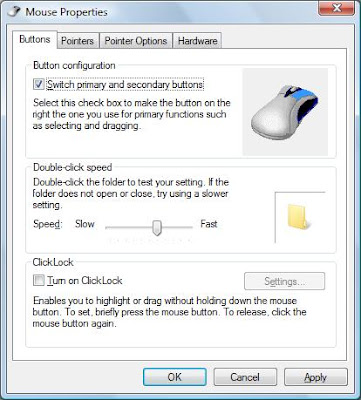
Here is a cool prank to switch mouse keys. It will switch the actions of click, Right click will work like left click and left click will work like right click. You can switch mouse clicks in absence of your friend and then can see him struggling on using mouse.

Follow these steps to switch mouse keys:

1). Open control panel.
2). Double click on Mouse in control panel, This will open mouse properties window.
3). Now in mouse property window go to buttons tab and click on switch primary and secondry buttons under mouse configration.

4). Click OK.
Its done.
To make it normal, follow these steps again and unclick switch primary and secondry button.

Thursday, April 15, 2010

Change Google logo text


You can Change google logo text and can place your name in place of google. You can also set that page as home page of your browser, so that whenever you open browser it opens a google's search engines webpage withyour name.
Here are steps:

1). There are lots of websites which provides you to change Google logo text. One of them is http://www.blingmysearch.com/ .
2). Open above link, copy and paste above address in adress bar of browser or click here.
3). Here enter your name or any text which you want to set in place of google.

4). Select style of text by selecting one of the give designs
5). Click on create.
6). Set this webpage as your home page.

You can also select theme for your homepage by using this site.


Wednesday, April 14, 2010

Some Cool N Funny Tricks for Mozilla Firefox


Mozilla firefox is one of the coolest browser, most if us use mozilla. We kno its famous for its addons but here are some cool and funny tricks for mozilla firefox. Some of them are useful and some of them are of no use just for fun. Try them..

Open Firefox inside Firefox
Type "chrome://browser/content/browser.xul" in addressbar and press Enter.


Open Bookmark Manager inside a tab
Type "chrome://browser/content/bookmarks/bookmarksPanel.xul " in address bar and press Enter.


Open Options dialog box inside a tab
Type "chrome://browser/content/preferences/preferences.xul " in address bar and press Enter.

Open History Panel inside a tab
Type "chrome://browser/content/history/history-panel.xul" in address bar and press Enter.


Open Extensions Window inside a tab
Type "chrome://mozapps/content/extensions/extensions.xul?type=extensions" in address bar and press Enter.


Open Private data window inside a tab
Type "chrome://browser/content/preferences/sanitize.xul" in address bar and press Enter.


Try some more
For about firefox write "chrome://browser/content/aboutDialog.xul " and press Enter
For list of names who help in creating firefox write "chrome://browser/content/aboutDialog.xul " and press Enter.

Thursday, March 25, 2010

Computer Speak whtever you Type - Cool Computer Tricks


Here is trick which make your computer speak whatever you type, This will create a speech converter software. Just follow given steps:

1). Open a notepad file.

2). Copy the script given below in notepad.

Script:

Dim message, sapi
message=InputBox("What do you want me to say?","Speak to Me")
Set sapi=CreateObject("sapi.spvoice")
sapi.Speak message

3). Save this file wBoldith any name with .vps extension. For ex speak.vps.

4). Now double click on that file, It will open a window just like one given below

5). Type anything which you want your computer speak in text box.

6). Press OK.


Monday, March 22, 2010

Find your Orkut Membership number

Do you want to know that you are which member to join orkut ????
Orkut provides orkut membership no to every account through this you can easily know about how many people join orkut before you and you are which member to join orkut.

1). Right click on the profile photo.
2). Click on view image info.
3). It would open a window and here you would see a number for your photo, that's the orkut membership no.

For above image it is 18,70,73,500.


Friday, March 19, 2010

Move Mozilla Firefox Automatically- Cool Computer Tricks

Do you want to have some fun and want to impress your friends?? If yes, then this trick is for you. By using this you can move your Firefox window automatically.
Here are steps:

1). Open firefox browser.

2). Just copy the following javascript and paste it to address bar and hit enter.

javascript:a=0;x=0;y=0;setInterval("a+=.01;x=Math.cos(a*3)*2; y=Math.sin(a*2)*2;moveBy(x,y)",2);void(0)

3). To stop moving, just refreash the window or press f5.
enjoy...