Showing posts with label Enable. Show all posts

Saturday, August 14, 2010

Add Run command to start menu in Vista

Window vista does not have run command in start menu. Run command is great feature of window xp. So those who upgrade from window xp to window vista may miss run command.
Here are steps to include run command in window vista's Start menu.


Follow given steps to add run command to start menu:

1). Right click on taskbar and go to properties.

2). Click on start menu tab.

3). In start menu properties, click on customize button.


4). Scroll down to run command and click on check box of run command.


5). Click ok.

Its done.
Check start menu, It should include run command as shown in figure.


Saturday, July 31, 2010

Use Pendrive as RAM in window VISTA - Useful Vista Trick

If you have Window vista installed in your computer and have less RAM, then you must be tierd of window vista's slow performance. But now here is 1 solution you can increase the RAM allowing the operating system more space of cache and fast access memory.

Vista provides a great feature called Ready boost. With this feature, you can utilize your pen drive or a memory card as RAM. With this feature, it increases the additional memory in your computer system to improve the performance of your personal computer.


you need to enable ready boost, Just follpw these steps:

1). When you plug the USB device in the USB port, it will show the message speed up my system using windows ready boost, Click on it.


2). Go to Pendrives Properties and click on Ready Boost tab.

3). Choose the option use this device and increase the limit of space to serve for your system speed option. The reservation of memory is depending on the capacity of pen drives.

4). Click OK.

Its done.

Friday, July 30, 2010

Enable Fonts in command Prompt - Cool Computer Tricks

Do you noticed that you have only 2 fonts in command prompt. If you want ot work in command prompt in iffrent font then you have to enable that font for it.

In order to enable additional fonts in the command prompt, you’ll need to do some changes in registry.

Follow given steps:

1). Open Run.

2). Type Regedit and press enter.

3). Now window ll ask for your perimission to continue just click on continue.

4). In registry editor window , browse to the following key:

HKEY_LOCAL_MACHINE\SOFTWARE\Microsoft\Windows NT\CurrentVersion\Console\TrueTypeFont

5). Here on the right hand pane is the list of enabled True Type fonts.

6). To add another font, right click anywhere and select new and then string value.

7). Enter its name 00.

8). Set the value to the name of the font you want to enable.

9). Click OK.

Its done.

Restart your computer, After rebooting change font of your command prompt to this newly enabled font.

Monday, July 26, 2010

Enable or Disable Control Panel

If your friends, childrens or family members use your computer and you do not want them to change any system setting then best way for this is to disable Control Panel. To disable control panel you have to do some changes in Regisstry. Just follow these steps:


1). Go to Run and type regedit.

2). Now window will ask for your permission to continue Click on Continue

3). Now in registry editor window, Browse to given User Key: [HKEY_CURRENT_USER\Software\Microsoft\Windows\CurrentVersion\Explorer]

4). Here create a new DWORD value, or modify the existing value called NoControlPanel set the value to equal 1 to enable the restriction.


5). Now again browse to following System Key: [HKEY_LOCAL_MACHINE\Software\Microsoft\Windows\CurrentVersion\Policies\Explorer]

6). Follow step no 4 to create NoControlPanel dword key.

7). Exit registry editor.

Its done.

you may need to restart for the changes to take effect. This setting allows you to restrict user access to the Control Panel options and settings.

Wednesday, July 21, 2010

Play FLV Files in Windows Media Player


Windows Media Player by default does not allow to play FLV (Flash Videos), after downloading YouTube videos you have to use either K-Lite pack or download other FLV Players to run Flash videos. But now no need to install other flv payers, now it is possible to play FLV files in windows media player. For that you need to install Windows Media Player plugin called PlayFLV.

PlayFLV is a windows media player plugin that enables WMP to playback FLV files. It has all default functions, such as zooming, skipping and full screen view, also its very easy to install and to operate. play FLV is open source, so freely available on internet you just need to download it.


Click here to download playFLV

Turn On/Off numlock on StartUp


Mostly keyboards have small numeric keypad which can also be used for some other functions like page up, page down. It also has 1 key known as numlock key when it is on, keypad used for numbers and when numlock is off, keypad used for other functions.
Windows turn off numlock key by default, so if you want to turn on numlock key by default on start up then now you can do it very easily. You have to do only some changes in registry. Just follow these steps:

1). Open run and Type Regedit and hit Enter.
2). Windows will ask for your permission to continue, click on continue.
3). Now in registry editor browse to HKEY_CURRENT_USER\Control Panel\Keyboard\.
4). Now in the keyboard folder, you should have a string value named InitialKeyboardIndicators with a value of 0, 1, or 2.


5). Double-click on this string value InitialKeyboardIndicators and edit the value to what you want.

0: Num Lock is turned OFF on startup
1: Disable Num Lock
2: Num Lock is turned ON on startup
6). Click ok.
Its done.

Monday, March 22, 2010

Show OR Hide profile visits in Orkut - Cool Computer Tricks


Do you want to visit profile of other users anonymously, dont want to show yourself in their recent visitors?? If yes then this trick is for you. Now you can prevent other users from knowing you have looked at their profile. Bur choosing this setting will prevent you from seeing who has viewed your own profile, You cant see your own profile's recent visitors.
To show or hide profile visits, just follow these steps:

1). Click settings on the top right corner of your profile.
2). Click the privacy tab.
3). Choose to show profile visits or hide profile visits.

4). Click save changes.

The option show profile visits will allow you to see recent visitors to your profile, but will also allow other members to see that you've looked at their profile.

Tuesday, March 16, 2010

Capslock Notification - screen flash and computer beeps

Here is trick for capslock notification, it make your screen flash and computer beeps everytime you press capslock button. It will let you know that capslock is on when you accidently hit it during typing. Its very simple just follow these steps:

For window vista

1). Go to control panel.

2). In control panel, click on ease of acesss centre.

3). Now click on make the keyboard easier to use.


4). Click on turn on toggle key and then click save.


5). Now again go to ease of acess window, then click on use text or visual alternative for sounds.


6). Here choose flash active window and then click save.

Its done.

For window XP

1). Go to control panel.

2). Open the Accessibility Options Icon.

3). On the Keyboard tab, click the Use Toggle Keys checkbox.

4). Click ok.

5) Go to Accessibility Options screen, click the Sound tab and check the Use SoundSentry checkbox.

6). Next click the Settings button and select Flash active window from the Warning for windowed programs drop down box.

7). Click ok.

Its done.

Now whenever you press capslock, your screen will flash and produce beep.

Tuesday, February 23, 2010

Disable or Enable Right Click on Taskbar - Cool Computer Tricks


Here is trick to remove right click functionality from taskbar. You just have to do some editing in windows registry editor. It willl disable right click on all components of taskbar. Just follow given steps:


1). Go to Start -> Run -> regedit.
2). In registry editor window go to
HKEY_CURRENT_USER\Software\Microsoft\Windows\CurrentVersion\Explorer
3). Create a DWORD value and set its value name as NoTrayContextMenu.


4). Set its value data 1 or 0
1- For disabling right click functionality from all components of taskbar
0- For enabling right click functionality from all components of taskbar
5). Restart computer.
Its done.

Friday, February 19, 2010

Activate and Deactivate SCREENSAVER - Cool Computer Tricks

You can activate or deactivate screensaver whenever you want. You have to make some changes in windows registry after then you can activate your screensaver by simply placing the mouse cursor at the top right corner of the screen and if you take the mouse to the bottom left corner of the screen, the screensaver will deactivate.

Follow these steps:

1) Go to RUN.

2) Type regedit and press Enter.

3) Then in Registry Editor window go to
HKEY_CURRENT_USER\Software\Microsoft\Windows\ CurrentVersion\Policies\Explorer

4) Now in the right pane right click and create a new string value and name it Mouse Corners.

5) Now modify its value and set it to -Y-N.

6) Press F5 to Referesh.

Its done.

To Deactivate it, you have to simply delete this string value.

Sunday, January 24, 2010

Enable Right click on Websites which had disabled it


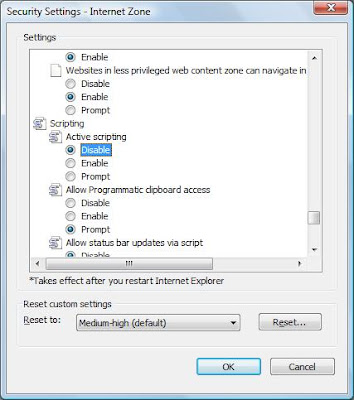
Lots of web sites have disabled the right click function of the mouse button...which disables all functionalities like: Copy, Paste, Open in new tab, Open in new Window etc.. It's really very annoying. But you need not to worry, now you can enable right click on those websites, It's very easy to change this setting in Internet Explorer, Just follow these steps:

1) Click Tools -> Internet Options.
2) In Internet settings window, Click on Security tab.
3) Then Click on Custom Level button.
4) In Security settings window, Scroll down to the Scripting section.
5) Set Active Scripting to disable.


6) Click Ok a couple of times.

you can also turn it enable anytime to disable right click on those sites by following same procedure..